How to Tag Someone in a LinkedIn Post: A Step-by-Step Guide for Maximum Reach
Learn how to tag someone in a LinkedIn post to expand your reach. Discover the right way to tag, what mistakes to avoid, and how to drive real engagement.

If you're asking "how to tag someone in a LinkedIn post," the quick answer is: type the @ symbol, start typing their name, and select them from the pop-up list. This action creates a clickable link to their profile and sends them a notification.
But that's just the basic command. The more important question is how to use this feature strategically to boost your visibility, build relationships, and avoid common mistakes that can hurt your reach.
This guide provides a comprehensive answer, with step-by-step instructions, comparisons, and expert advice, designed to answer your questions thoroughly.
Why Should I Tag People on LinkedIn? The Strategic Advantage
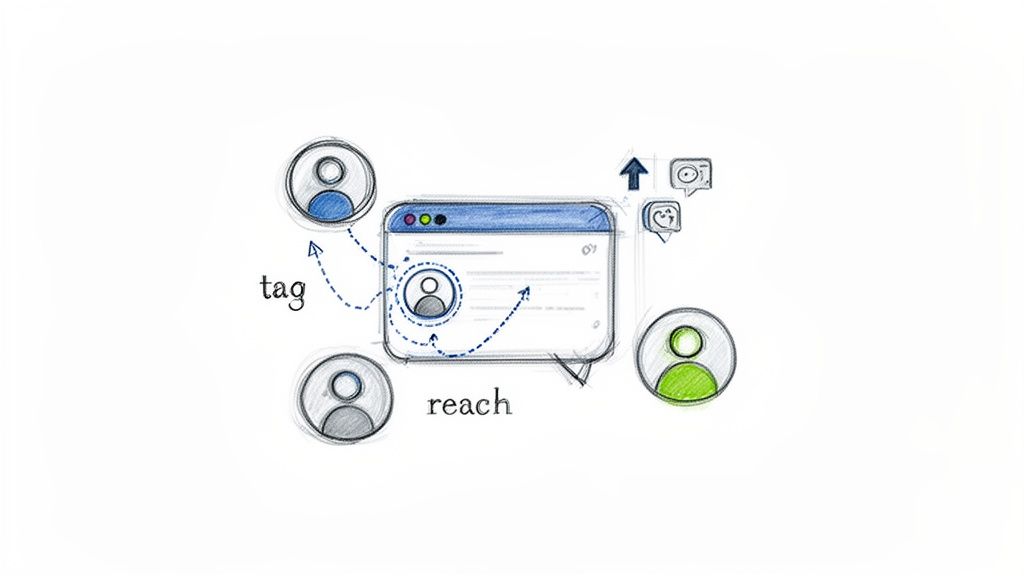
For founders, marketers, and sales professionals, a well-placed tag is more than a notification—it's a strategic tool. It helps spark conversations, strengthen professional connections, and significantly expand your content's audience.
Amplify Your Content's Visibility
When you tag someone in a post, you're not just notifying them. You are signaling to the LinkedIn algorithm that your content is collaborative and conversational. This can expose your post to parts of their network, dramatically increasing its reach and the number of impressions on LinkedIn it receives.
The LinkedIn algorithm, particularly as we look towards 2026, is optimized to reward authentic interaction. A relevant tag is a powerful signal that your post is generating genuine, valuable dialogue.
Analogy: Think of a tag as a digital introduction. By mentioning a colleague in a post about a shared project, you invite their network to view your work, effectively multiplying your audience.
Comparison: Smart Tagging vs. Spam Tagging
There is a critical distinction between a strategic mention and an annoying one. Understanding this difference is key to your success.
- Smart Tagging is about relevance. You mention individuals or companies with a direct, clear connection to your post's content. This adds value, invites meaningful discussion, and builds professional goodwill.
- Spam Tagging involves tagging a long list of people, often influencers or connections with large networks, in an attempt to gain attention for irrelevant content. This tactic is transparent, annoys users, damages your professional reputation, and can cause the algorithm to penalize your post, reducing its visibility.
This guide focuses on mastering smart tagging, turning a simple function into a core part of your engagement strategy.
How to Tag People and Companies on Any Device: A Step-by-Step Walkthrough
Whether you're on a desktop computer or a mobile device, the process for tagging on LinkedIn is consistent.
Step 1: In the post composer or a comment box, type the @ symbol.
Step 2: Immediately begin typing the name of the person or company you wish to mention. Do not add a space after the "@".
Step 3: Pause after typing the first few letters. A dropdown menu will appear with suggestions.
Step 4: Locate and click on the correct profile or page from the list. This is a mandatory step. If you only type the name, it will not create a live link, and no notification will be sent.
How to Tag an Individual in a Post or Comment
Mentioning a specific person is the most common use case for tagging. You can do this within the body of your post or in a comment to bring them into a discussion.
- In a Post: When drafting a new post, use the @ symbol to give credit to a collaborator, cite a source, or mention someone you met at an event.
- In a Comment: This is highly effective for bringing an expert into a conversation. For example, if a user asks a technical question, you can reply: "That's a great question! I'm looping in @JaneDoe from our product team; she'll have the inside scoop on this."
This ensures the right people see the content at the right moment. For anyone managing client accounts, it's an essential skill for writing effective LinkedIn posts that drive engagement.
How to Mention a Company Page
Tagging a company page follows the exact same steps. This is useful for highlighting a client partnership, mentioning a current or former employer, or giving credit to a tool your team uses.
When you type the "@" symbol in the post editor, LinkedIn's predictive search will suggest relevant company pages alongside individual profiles, simplifying the process.
Data Point: Proper tagging is a small tactic with a massive payoff. In the B2B landscape, where 89% of marketers use LinkedIn for lead generation, such details differentiate successful content from noise. This is increasingly important as organic reach for company pages declines. Experts predict that by 2026, company page content will represent just 1-2% of feed content, down from 7% in 2021, with many pages already seeing a 50% drop in reach year-over-year. Smart tagging helps counter this trend. You can dive deeper into these LinkedIn posting trends for 2026 on salesandmarketingengineers.co.uk.
The Unwritten Rules of Tagging Etiquette

Understanding the mechanics of tagging is simple. Mastering the social etiquette is what separates professional networkers from spammers. When you tag someone, you are requesting their attention. Use this privilege wisely.
The golden rule is relevance. Before you use the "@" symbol, ask yourself: "Does this person have a direct and genuine connection to my content?" A weak connection is often perceived as worse than no connection at all.
When is it OK to tag someone? The Justification Checklist
Your post is a conversation starter. Only invite people who have a clear reason to be there. Successful tags typically fall into these categories:
- You are highlighting a collaboration: If you worked on a project, co-hosted a webinar, or co-authored an article, tagging is essential for giving credit.
- You are quoting or referencing their work: Citing a key insight from a thought leader or a statistic from an expert's report? Tag them to show appreciation and credit your source.
- You are continuing a real-world interaction: Mentioning a valuable conversation with a new contact from a conference is a great way to solidify the relationship.
Why Context Is Your Most Important Tool
Never just drop a list of names at the end of a post. This is the digital equivalent of shouting names in a crowded room—it's jarring and appears desperate. A good tag should be woven seamlessly into the narrative of your post.
Your tag must immediately answer the question everyone asks when they receive a notification: "Why am I being mentioned here?" Great tags provide this context instantly, making the alert feel like a welcome tap on the shoulder, not an annoying interruption.
Instead of a random tag dump, provide context:
"I’m still thinking about the insights on AI in marketing from @JaneDoe's panel yesterday. Her point about genuine personalization really hit home."
This approach is more than polite; it's strategic. The tagged individual is far more likely to engage, signaling to the LinkedIn algorithm that your content has value. This is especially powerful if you're trying to generate leads on LinkedIn, as it builds genuine rapport.
Good Tagging vs. Bad Tagging: A Practical Comparison
This table illustrates the difference between a tag that adds value and one that creates noise.
The difference is thoughtfulness. Strategic tagging demonstrates respect for the other person's time and expertise, which is the foundation of any strong professional relationship.
Common Tagging Mistakes That Hurt Your Reach
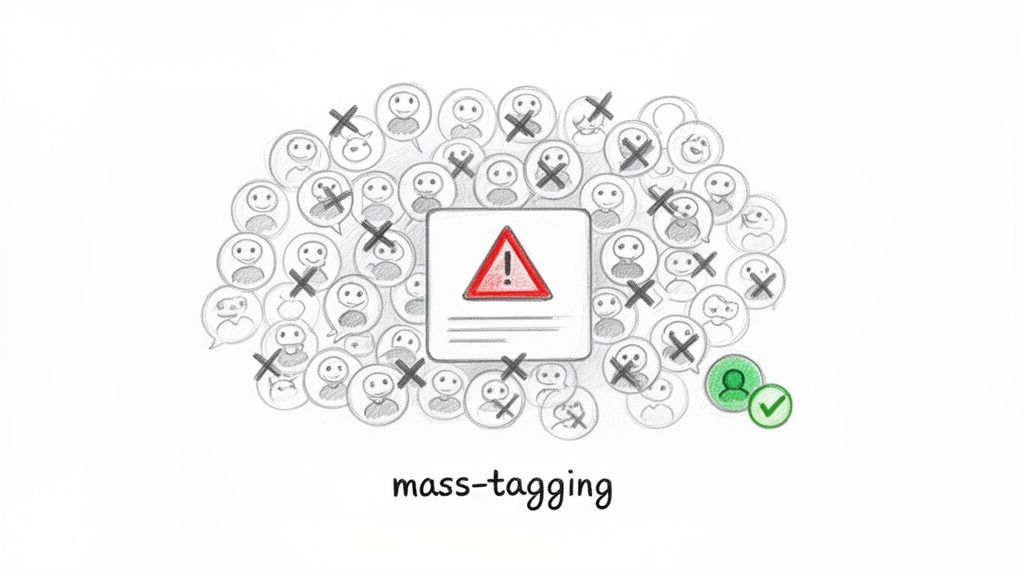
If your tagged posts are not receiving engagement, you may be making common mistakes. It’s crucial to know what not to do. The LinkedIn algorithm is designed to penalize behavior it identifies as spam.
The most significant error is mass-tagging. This refers to posts with a long list of names appended at the end. While the creator hopes to artificially boost reach, it achieves the opposite. It is an annoyance to those tagged and a major red flag for the algorithm.
From LinkedIn's perspective, the goal is to foster real conversations, not to serve as a billboard for spam. Tagging a dozen people with no connection to the content signals that your post is low-quality, and its distribution will be throttled accordingly.
The Problem With Irrelevant and Impersonal Tags
Beyond tagging too many people, several other missteps can reduce your engagement. These are particularly important for agencies and ghostwriters to avoid.
Here are the most common culprits:
- The "Tag and Run": Dropping a name in a post without context leaves the tagged person confused and provides no incentive to engage. Always explain why you are tagging them.
- Tagging Inactive Profiles: Mentioning a dormant account indicates a lack of research. It adds no value and appears unprofessional.
- Ignoring Privacy Settings: You cannot tag someone if their privacy settings prevent it. Attempting to bypass this by typing their name without a live link is futile; they will not be notified.
The consequences of poor tagging habits extend beyond a single post. Research indicates that mass-tagging more than 10 people is flagged as spam. An analysis of over 621,000 posts found this practice led to a 47% median drop in impressions. You can review the data in this LinkedIn algorithm research from Sproutsocial to understand how these trends impact content visibility.
Advanced Tagging Strategies for Driving Conversations

Once you've mastered the basic "@" mention, you can leverage it as a powerful tool for networking and creating business opportunities. A tag can be a strategic move, not just a notification.
For example, after attending a webinar, instead of a generic "this was great" post, craft a post detailing your biggest takeaway and tag the speaker directly. This demonstrates engagement and opens a direct line for a reply. This transforms you from a passive attendee into a thoughtful professional initiating a valuable conversation.
Create a Tagging Feedback Loop
A highly effective advanced strategy is the feedback loop. This involves strategically tagging multiple relevant individuals to initiate a dynamic conversation around your post, demonstrating your expertise and value.
Here's a step-by-step example for sharing an article:
- Step 1: Tag the author. Provide a specific compliment or ask a thoughtful question about their work. For example: "Incredible insights on GTM strategy, @AuthorName. I’m curious how you’d adapt this for early-stage startups."
- Step 2: Bring in another expert. Tag a respected peer or influencer in the same field. For example: "@ExpertName, this ties into your recent post on product-led growth. What’s your take?"
This multi-tag approach positions you as a facilitator of important industry discussions, boosting your visibility and credibility.
By tagging multiple, relevant individuals, you're not just amplifying your post; you're building a micro-community around a specific topic. This fosters genuine interaction that the algorithm rewards.
Use Tags to Reactivate Conversations
Another advanced tactic is to use tags in the comments to revive a conversation. If a post you wrote last week receives a new, insightful comment, you can tag the originally mentioned people to draw them back into the dialogue.
This shows that you are actively managing your content and value the ongoing discussion. Learning how to tag someone in a LinkedIn post in this manner ensures your content continues to deliver value long after it's published.
Common LinkedIn Tagging Questions, Answered
Here are quick, clear answers to the most common questions and issues related to tagging on LinkedIn.
Why can't I tag someone in my post?
This issue almost always has one of three causes:
- Privacy Settings: The person may have restricted who can tag them. If you are not a 1st-degree connection, you may be unable to tag them.
- Incorrect Method: You must type @, start typing the name, wait for the dropdown menu, and click the correct profile. Simply typing their name will not work.
- Tagging Disabled: Some users disable tagging entirely in their account settings. In this case, no one can tag them.
What is the ideal number of people to tag in a post?
For optimal results with the LinkedIn algorithm, quality is more important than quantity.
The sweet spot is tagging between 3 and 5 people. The essential rule is that every person tagged must have a clear and obvious reason for being included in your post.
Tagging more than 10 people is often perceived as spam by the algorithm and can significantly harm your post's reach.
Will someone know if I tag them?
Yes. When you correctly select their name from the pop-up menu, LinkedIn sends them a notification that they have been mentioned in your post. This notification is the mechanism that makes tagging an effective tool for starting a conversation.
Can I edit a post to add or remove tags?
Yes, you can. LinkedIn allows you to edit tags after a post has been published.
To do so, locate your post, click the three-dot menu (...) in the top right corner, and select "Edit post." You can then use the backspace key to remove an existing tag or type the @ symbol to add a new one. Any newly tagged person will receive a notification as soon as you save the edits.
Stop sounding like a generic AI and start sounding like you. Brewbrand learns your unique voice by analyzing your past LinkedIn content, so you can generate authentic, ready-to-publish posts in under two minutes. Ditch the generic templates, save hours each week, and let your personal brand do the selling. Start free on brewbrand.ai.
Generate LinkedIn content easier than ever before
Lorem ipsum dolor sit amet, consectetur adipiscing elit. Lorem ipsum dolor sit amet, consectetur.